BrightScript Simulation Engine :: v
How to Use the BrightScript TV
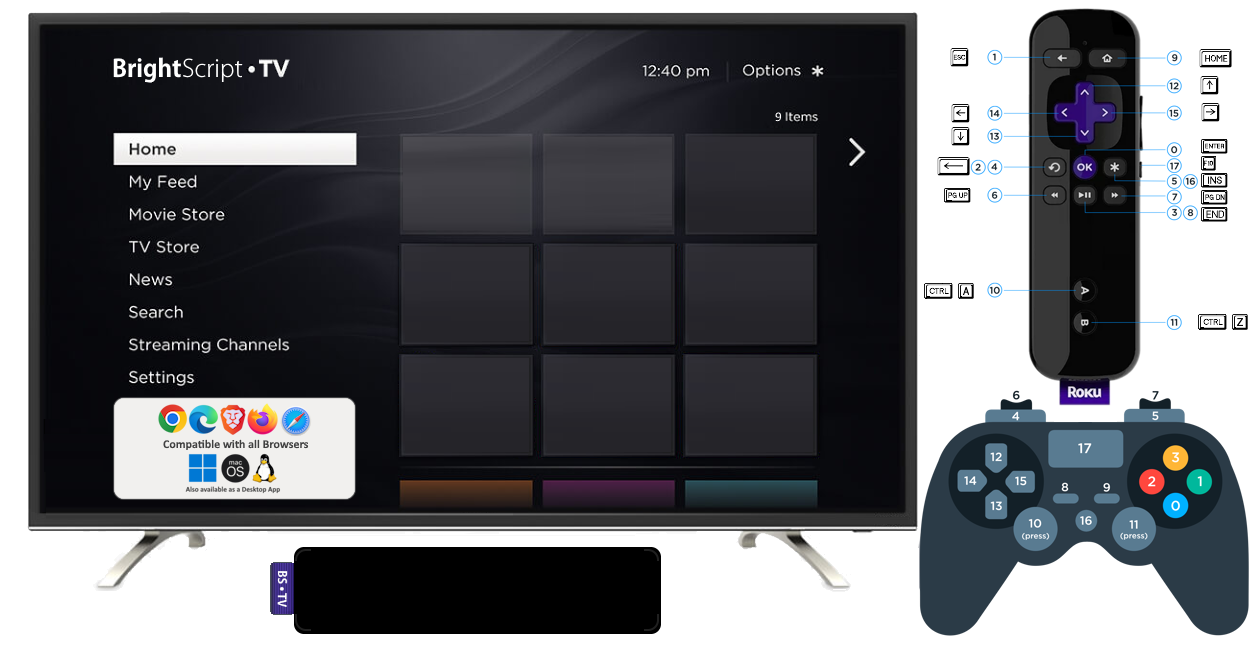
– Click on any app icon in the BrightScript TV menu screen or load your own app or code using the purple button above.
– When an app is running, you can make it full screen by double-clicking on the display.
– Use your keyboard to navigate on the games and apps, the image you see on the right side, shows what keys that are mapped to the Roku remote control buttons.
Notes for BrightScript Developers
You can see the debug messages from print statements in your code using the browser console, just right click anywhere in the page and select Inspect (Ctrl+Shift+i). Exceptions from the engine library will be shown there too.
If you added a break point (stop) in your code, you can also debug using the browser console, just send the commands using: brs.debug("help")
The Roku registry data is stored on the browser Local Storage and you can inspect it using the Developer Tools.
For a better debugging experience, is recommended to use the engine desktop application integrated with Visual Studio Code, you will find more details in the links below.
Documentation and Downloads
To learn more about the project visit the repository at: https://github.com/lvcabral/brs-engine/
To download the Desktop Applications for Windows, macOS and Linux go to the releases page.
You can download the source code of this project in either zip or tar formats.
You can also clone the project with Git by running:
$ git clone https://github.com/lvcabral/brs-engine
Copyright © 2019-2026 by
Marcelo Lv Cabral